
Transform Images to Perfect Vectors
completely free, forever
Drop your image and get a clean, scalable SVG instantly. No account needed, no watermarks, 100% free.
Drop image or click to upload
JPG • PNG • WEBP • BMP • TIFF • GIF • Max 10MB
100% Free
No hidden costs
Privacy First
Files never stored
Instant Results
Under 3 seconds
No Sign-up
Start immediately
How to convert WEBP to SVG?
Transform your images in three simple steps. No technical skills required.
Select
Choose a WEBP image from your photo library that is less than 40MB in size.
Convert
Upload your WEBP image to automatically convert it to SVG format.
Continue editing
Your new image will download as an SVG file. Save it, share it, or keep editing it to make it your own.
Why choose our WEBP to SVG converter?
Professional-grade conversion tools trusted by designers and developers worldwide. Fast, reliable, and completely free.
Free WEBP to SVG Converter
Convert WEBP to scalable SVG vectors instantly. Resize without quality loss — ideal for logos, icons, and web graphics.
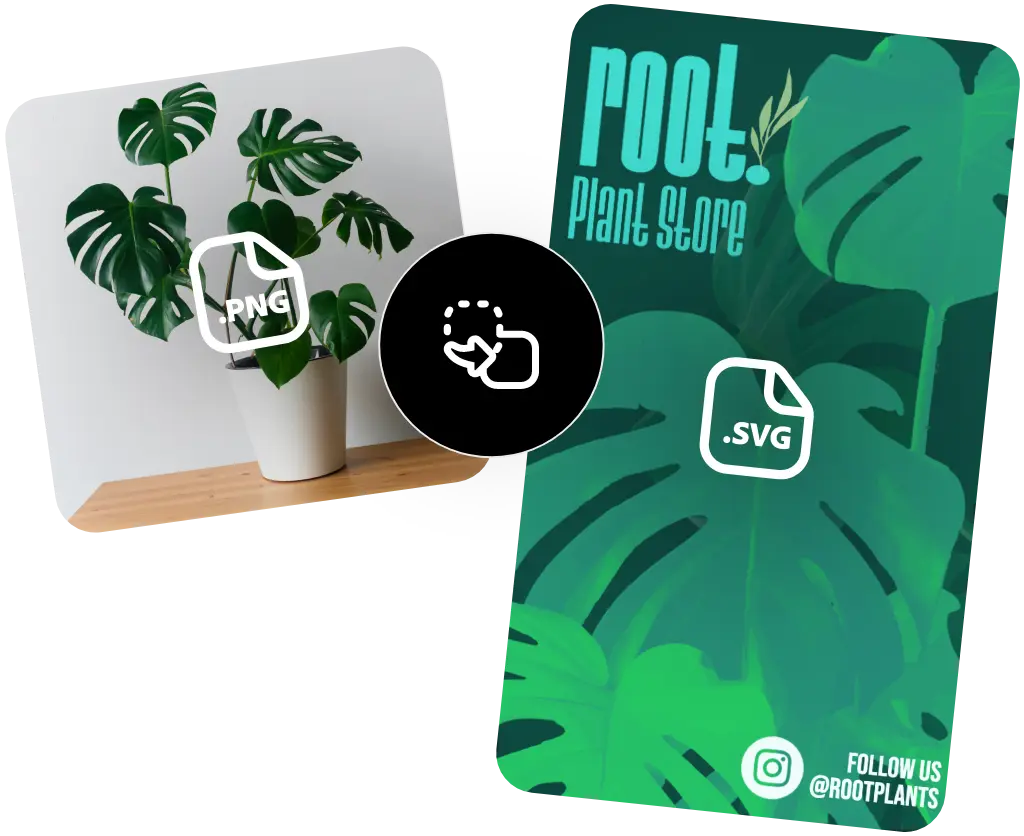
Simple & Fast Conversion
Upload your WEBP file and get SVG output in seconds. No signup required — download and use immediately.
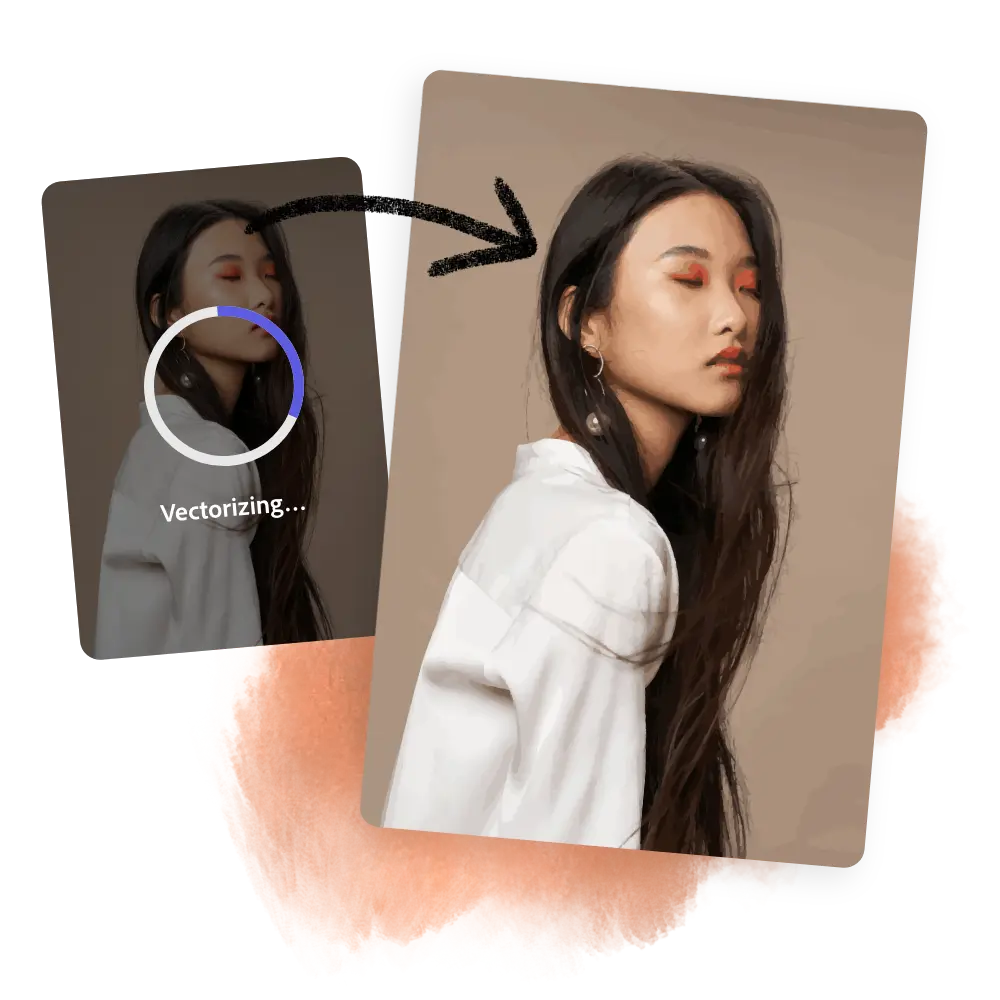
Professional Editing Tools
Remove backgrounds, resize images, and apply filters. Create stunning designs before converting to SVG format.
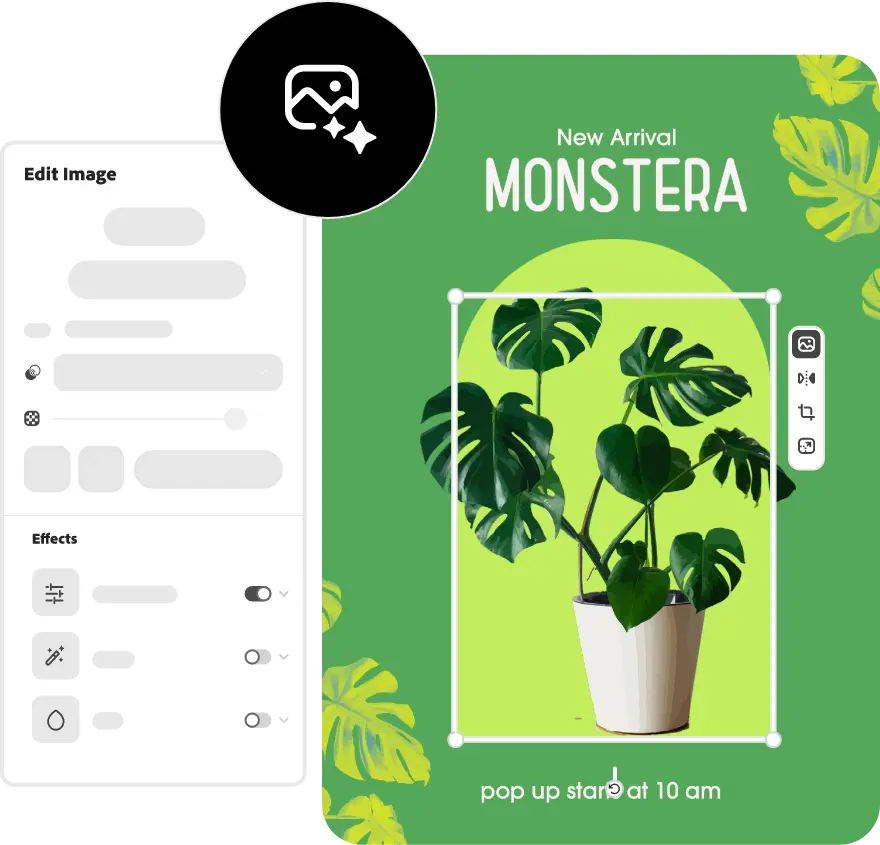
WEBP Editing Toolkit
Remove backgrounds, resize, and convert to SVG — all in one place.
Background Removal
AI removes backgrounds from WEBP images instantly.
Smart Resizing
Resize WEBP to any dimension without quality loss.
Instant Vectorization
Convert WEBP to scalable SVG vectors in seconds.
Start converting WEBP to SVG now
Free, fast, and no signup required.
10M+
Converted
50K+
Users