Image to SVG Converter
for logos, photos, drawings and screenshots

Drop a PNG, JPG, WebP, GIF, BMP or TIFF – the format is detected for you. Tell us what is in the picture and the converter starts from the right settings. No cost, no limits, no watermarks.

What's in your image?

Picks the starting settings. You can switch after upload.

Drop image or click to upload

JPG • PNG • WEBP • BMP • TIFF • GIF • Max 10MB

No credit card required • Unlimited conversions

100% Free

Privacy First

Instant Results

No Sign-up

10M+|Always Free

Pick the image type, not the file type

What decides how an SVG turns out is what the picture shows, not whether it arrived as a PNG or a JPG. These are real results from this converter, each traced with the starting settings for its type.

Logos and icons

Settings: Logo & Icon
Logos and icons: Original
Original
Logos and icons: SVG
SVG

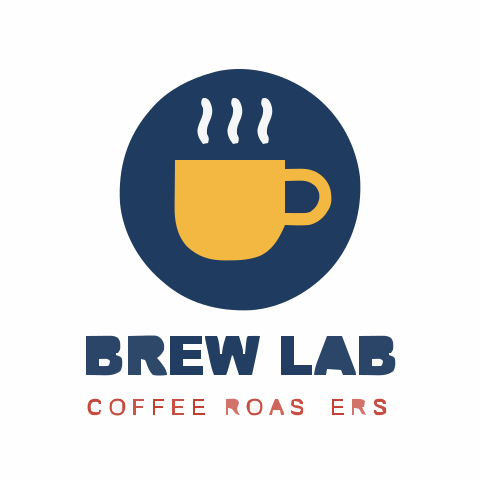
A few flat colours and hard edges map almost one to one onto vector shapes. The Logo & Icon settings merge near-identical colours and drop specks smaller than 8 pixels, so the SVG stays small and easy to edit.

Look at the small tagline: thin letters below the speck limit can drop out. Lower Filter speckle or upload a larger copy when small text matters.
Photos

Settings: Photo

Photos: Original
Original
Photos: SVG
SVG

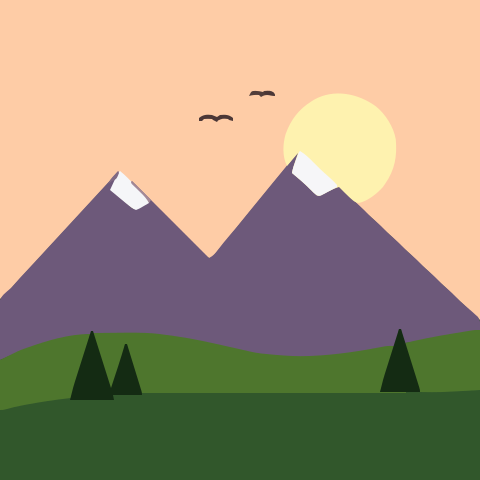
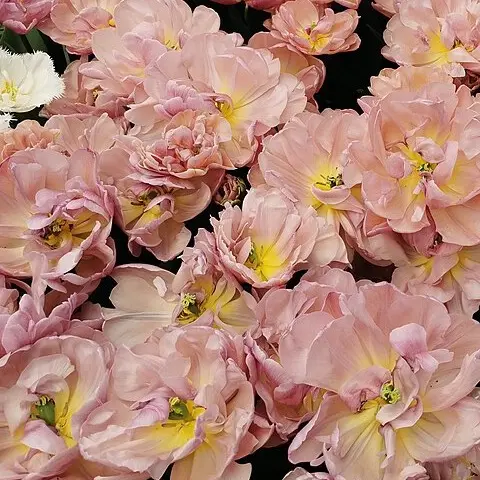
A photo has no flat areas, so it is rebuilt from thousands of small colour patches. The Photo settings keep every colour step, which gives a painterly copy of the picture rather than a sharp photograph.

This 480 px crop became a 3.5 MB SVG with more than 9,000 shapes, far larger than the image itself. Trace only the subject when you can.

Illustrations and drawings

Settings: Illustration

Illustrations and drawings: Original
Original
Illustrations and drawings: SVG
SVG

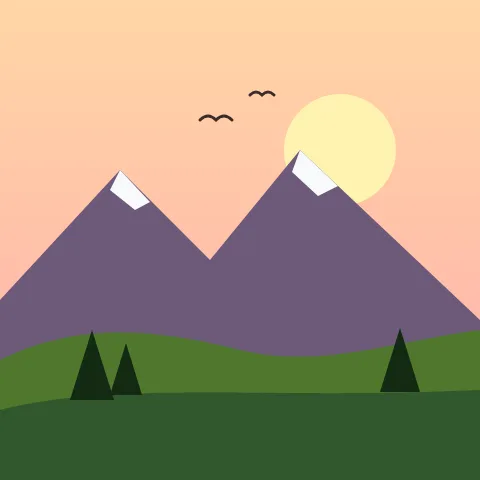
Flat artwork with a few soft gradients sits between a logo and a photo. The Illustration settings keep gradients as a handful of colour bands and smooth curves, so shapes stay editable.

Smooth gradients turn into visible steps. Lower Gradient step for finer bands, at the cost of more shapes.

Screenshots and charts

Settings: Sharp / Geometric

Screenshots and charts: Original
Original
Screenshots and charts: SVG
SVG

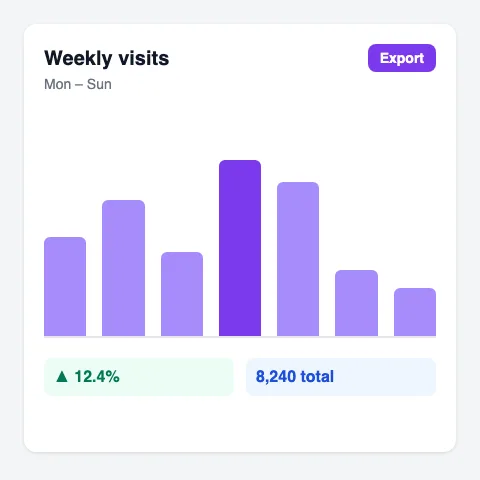
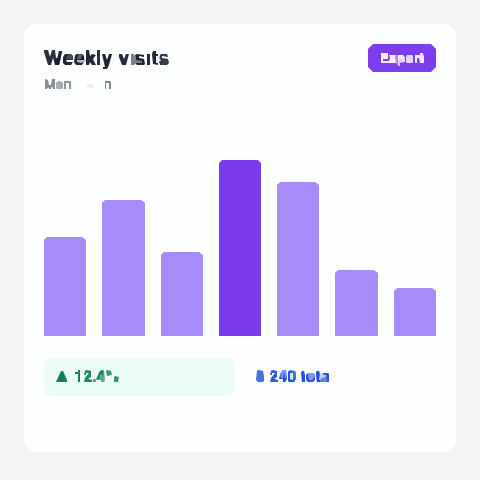
Interface screenshots, charts and diagrams are made of straight edges and boxes. The Sharp / Geometric settings trace with straight segments instead of curves, so bars and buttons keep their corners.

Small interface text is the weak spot: letters a few pixels tall break apart. Zoom in before taking the screenshot, or retype the text in a vector editor.

Three steps

How it works

Upload, adjust, download. No account needed.

01

Upload

Drop an image up to 10 MB or click to choose one. A preview appears in a few seconds.

02

Adjust

Start from a preset such as Logo & Icon, Photo or Black & White, then fine-tune detail, colours and corners while the preview updates.

03

Download

When the preview looks right, download the SVG. The file is yours to use, with no watermark.

Why logos come out clean and photos get so many colours

A raster image is a grid of coloured pixels. To make an SVG, the converter groups neighbouring pixels of similar colour into regions and describes the outline of each region as a path. The fewer distinct colours an image has, the fewer regions there are, and the cleaner and lighter the SVG.

A logo might have three or four colours, so it becomes a few dozen paths that you can recolour and scale without limits. A photo changes colour from one pixel to the next: shading, texture and soft focus all turn into separate regions. That is why a photo SVG holds thousands of shapes and can be many times larger than the original file, while a logo SVG is often smaller.

Edges matter as well. A sharp, high-contrast edge gives the tracer a clear outline to follow. Blur, compression noise and shadows create in-between colours along the edge, which show up as thin slivers or extra shapes.

Which setting does what

The Detail, Colors and Corners sliders cover most adjustments. Open Advanced after upload to set the exact values below; the preview updates as you go.

Filter speckle

Removes patches smaller than the given size in pixels. Raise it to clean up noise and dust; lower it when small text or fine details disappear.

Color precision

How many shades of each colour channel are told apart. Lower values merge similar colours into one, higher values keep subtle tones and add shapes.

Gradient step

How different two colours must be to become separate layers. A small step gives smooth gradients with many bands, a large step gives flat, poster-like colour.

Corner threshold

The angle below which a bend is kept as a sharp corner. Lower it to keep corners crisp, raise it for rounder, smoother outlines.

Segment length

The length of the pieces each curve is built from. Shorter segments follow the outline more closely, longer ones give simpler paths.

Path precision

Decimal places written into the path data. Two or three are plenty on screen; fewer decimals make the file smaller.

For signatures, stamps and line art in one colour, the Black & White preset traces a single colour and gives the simplest result, ready for cutting machines and laser engravers.

Every image format in one box

This page takes PNG, JPG, WebP, GIF, BMP and TIFF files up to 10 MB, so you never need to check the extension first. Each format also has its own page with advice on its quirks.

PNG

Screenshots and exports from Canva or Figma, often with a transparent background. See the PNG to SVG converter for transparency and colour depth.

JPG and JPEG

Photos, scans and logos sent by email or chat, usually with compression noise. See the JPG to SVG converter for cleaning it up.

WebP

Images saved from websites, which often serve WebP in place of PNG or JPG. See the WebP to SVG converter.

GIF

Older web graphics and animations; only the first frame is traced. See the GIF to SVG converter.

BMP

Large uncompressed files from Paint and older Windows tools. See the BMP to SVG converter.

TIFF

Scans and print files, including multi-page and CMYK TIFFs. See the TIFF to SVG converter.

Getting a cleaner SVG from any image

  • Start from the largest, sharpest copy you have. Images above 4096 pixels on the longest side are scaled down, but small or blurry images lose detail that tracing cannot bring back.
  • Crop to the part you need before converting. Every pixel of background becomes shapes in the SVG.
  • Use Remove background in the editor for a busy or photographed background, so only the subject is traced.
  • If edges come out jagged, lower Corner threshold or switch to the Sharp / Geometric preset; if they look lumpy, raise it.
  • Use Copy SVG or Download when the preview looks right. The file has no watermark and opens in Illustrator, Inkscape, Figma and Cricut Design Space.

Wondering whether a graphic should stay a JPG at all? SVG vs JPG compares quality, file size and typical uses.

Image to SVG questions

Which image formats can I convert to SVG?

PNG, JPG and JPEG, WebP, GIF, BMP and TIFF, up to 10 MB per file. The format is detected automatically, so any of them can be dropped into the same box.

Is the result a real vector file?

Yes. The image is traced into paths with fill colours, not wrapped in an SVG as an embedded picture, so it scales to any size and each shape can be edited or recoloured.

Can I convert a photo to SVG?

Yes, with the Photo settings, but expect a painterly look and a large file with thousands of shapes. Photos keep their detail better as JPG or WebP; SVG suits logos, icons, drawings and other flat artwork.

Why is my SVG larger than the original image?

Every colour region becomes its own path. Photos, gradients and noisy scans produce many regions. Crop to the subject, remove the background, or raise Filter speckle and lower Color precision to cut the number of shapes.

Is the image to SVG converter free?

Yes. There is no sign-up, no watermark and no limit on the number of images you convert in the browser.

Can I edit the SVG afterwards?

Yes. Recolour or hide colours in the editor before downloading, or open the file in Illustrator, Inkscape, Figma or Cricut Design Space to change paths and text.

Start converting images to SVG now

Free, fast, and no signup required.

10M+

Converted

50K+

Users